
How to Find Who Changed an AWS Resource
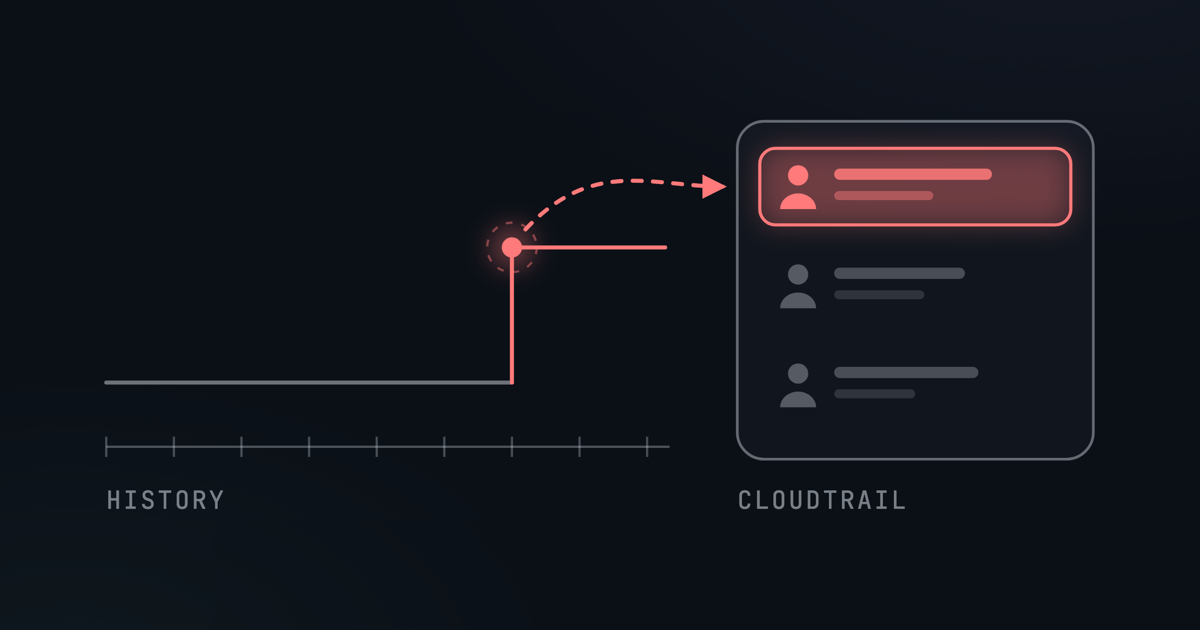
A Security Group Changed Overnight
Yesterday, a security group allowed SSH only from your office IP. Today it allows SSH from anywhere, and the check Security groups should not allow ingress from 0.0.0.0/0 to port 22 has started failing. You know what changed and roughly when.
The next question is always who. Was it a teammate testing something, a pipeline applying a template, or someone using credentials they shouldn't have?
The answer is in CloudTrail. It records the calls made to the AWS APIs, including the ones the console makes for you, and keeps the last 90 days of them in Event history, even if you never set up a trail.
Finding It in the CloudTrail Console
This is how most people look it up:
- Sign in to the account that owns the security group. Event history only shows the account you're signed in to. In an AWS organization, that means the member account, not the management account.
- Switch to the security group's Region. Event history shows one Region at a time.
- Open CloudTrail, then Event history. It lists the newest events first and hides read-only events by default.
- Filter by the resource. Under Lookup attributes, choose Resource name and enter the security group's ID, such as
sg-0a1b2c3d4e5f67890. You can only filter on one attribute, so you can't also narrow it to one kind of event. - Set a time range. If you know roughly when the rule changed, set the range around it. If you don't, start with a few days and widen it until something turns up.
- Open each event and read its record. The User name column gives you a name, but the full story is in the JSON at the bottom of the event's page.
Three fields in the record answer the question:
userIdentityis who made the call. Itstypetells you whether it was an IAM user, a role or the root user. Someone who signed in through IAM Identity Center shows up as a role whose name starts withAWSReservedSSO_, with their user name at the end of thearn.sourceIPAddressis where the request came from, or the AWS service that made it.requestParametersshows what they changed. For anAuthorizeSecurityGroupIngresscall, look for port 22 and0.0.0.0/0.
This works, and it's free. It's just slow when you're in the middle of something else: two console switches before you can search, a time range you have to guess, and JSON to read for every event that comes back. The CLI's aws cloudtrail lookup-events runs the same search with the same limits. Event history also covers only 90 days and one account at a time. To search further back or across the organization, you need your trail's logs in S3 and a tool such as Athena to query them.
The Faster Way in GuardKite
GuardKite already knows everything you just looked up by hand: the account, the Region and the security group's ID. It also knows roughly when it changed, because the finding's History timeline shows the day the check went from passing to failing.
So the search is one click. Open the finding, find that day in its History timeline and click Look up activity. Look up latest activity, next to the History heading, does the same for the most recent change. GuardKite then lists the CloudTrail events that touched the security group before the scan that caught the change.
Each event shows:
- Who made the call: an IAM user, a role, a person signed in through IAM Identity Center (shown by their user name), the root user, or an AWS service. Hover over it to see the full ARN.
- What they did: the API action, such as
AuthorizeSecurityGroupIngress. - When they did it.
- Where the request came from: the source IP address, or the AWS service that made it.
For the security group above, you might see one AuthorizeSecurityGroupIngress call from a teammate's Identity Center session late yesterday afternoon. If you recognize the IP address, you send them a message. If you don't, you have a reason to look closer.
A resource can change more than once in a day. Someone widens a rule, a pipeline reapplies its template an hour later, someone updates a tag. GuardKite doesn't guess which of those made the check fail. It shows up to five events, newest first, marked as a best-effort match, and leaves it to you to pick the one that matters.
There's no account to sign in to, no Region to switch, no time range to guess and no JSON to read.
What the Lookup Needs
- A trail that logs the Region. Unlike Event history, the lookup needs a CloudTrail trail logging the security group's Region. Without one, it tells you there's no trail rather than showing an empty list. One organization trail covers every account and every Region; here's how to set one up.
- Pipelines show up as their role. A change made by Terraform, CloudFormation or a CI job shows the role the job ran as, not the developer who wrote the change. That still tells you which pipeline to look at.
- It looks back about a day and a half from the scan that caught the change. GuardKite scans every day, so that covers the time since the previous scan.
- Some console actions don't create an event. If nothing matches, the lookup says so, so you know it looked.
Try It on Your Own Account
In GuardKite, the History timeline and the lookup are on the finding itself, next to the check's explanation and how to fix it.
To try them on your own AWS account, book a live scan. We connect one of your accounts with a read-only role and go through what we find with you.